This note covers the first Docker commands worth knowing after you understand Dockerfile, Build, Image, Run.
Command Flow
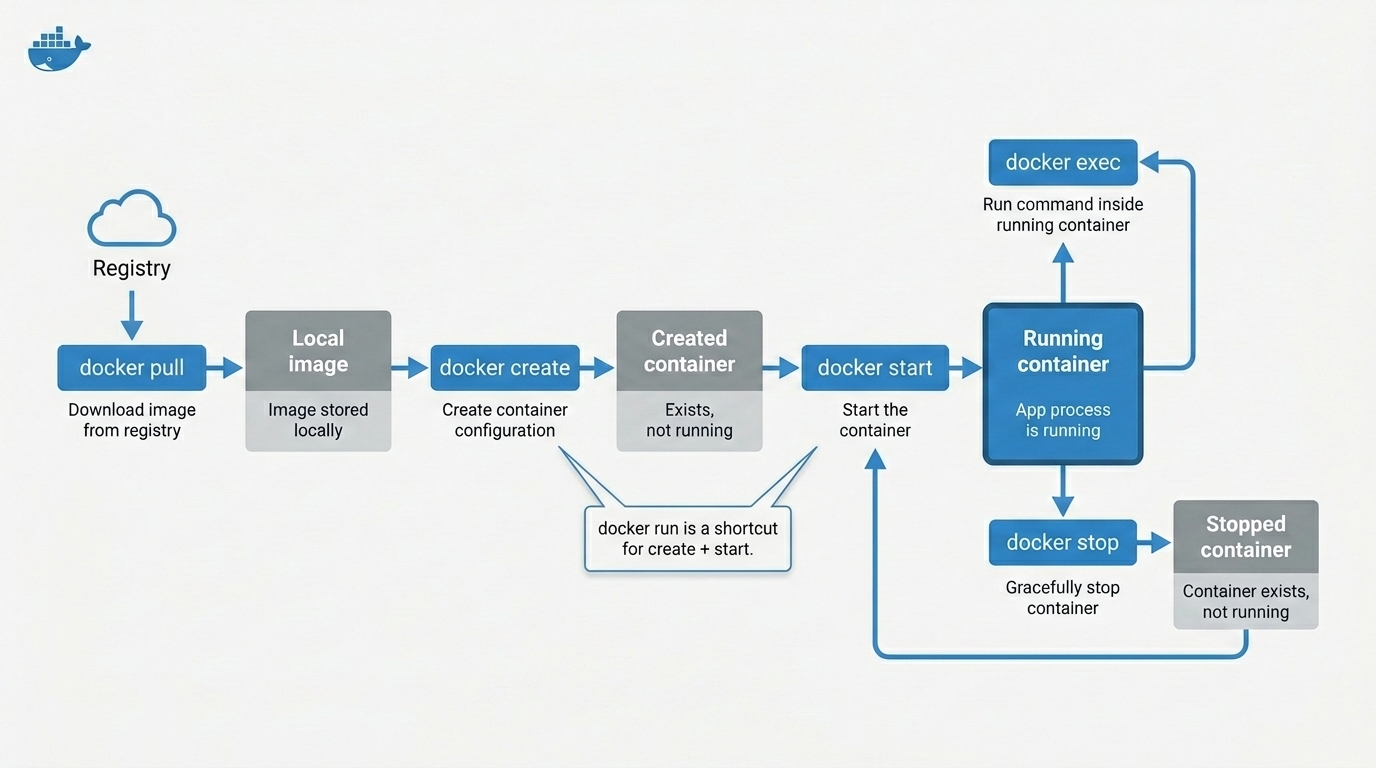
Docker container lifecycle: pull an image, create/start a container, exec into it, stop it, and restart it.
Key Insight:
docker runis the shortcut most people use day to day. Internally, the mental model is still image → create container → start container.
Quick Reference
| Command | What It Does | Common Use |
|---|---|---|
docker pull | Downloads an image from a registry | Get an image before creating containers |
docker login | Authenticates Docker to a registry | Pull private images or push your own images |
docker push | Uploads a tagged image to a registry | Share an image with another machine or deployment system |
docker images | Lists local images | See what images are already on the machine |
docker tag | Adds another name/tag reference to an image | Prepare an image for a registry or version label |
docker rmi | Removes local images or image tags | Clean up images from the host |
docker image prune | Removes unused/dangling local images | Clean image cache safely when disk grows |
docker ps | Lists containers | See running containers, or all containers with -a |
docker inspect | Shows low-level JSON metadata | Debug container/image configuration |
docker run | Creates and starts a new container | Start a container in foreground, detached, or interactive mode |
docker create | Creates a container without starting it | Prepare container config before starting |
docker start | Starts a created or stopped container | Resume a container |
docker stop | Stops a running container | Gracefully stop app process |
docker logs | Shows container stdout/stderr logs | Debug app output without entering container |
docker exec | Runs a command inside a running container | Debug, inspect files, run a shell |
docker commit | Creates an image from a container’s filesystem changes | Snapshot experiments; prefer Dockerfile for repeatable builds |
docker pull
docker pull downloads an image from a registry into the local Docker image store.
docker pull IMAGE[:TAG]
docker pull IMAGE@DIGEST
Examples:
docker pull nginx
docker pull nginx:stable
docker pull ubuntu:24.04
docker pull --platform linux/amd64 nginx
docker pull -q nginx
Where Does the Image Come From?
An image reference points to a registry, repository, and version selector.
registry.example.com/team/api:1.0
|------------------| |------| |---|
     registry       repository tag
If you do not specify a registry, Docker uses its default registry configuration, commonly Docker Hub.
Short official images are expanded by Docker. For example:
nginxis treated like an image from Docker’s default registry and official image namespace.
Which Version Do You Get?
Docker can identify an image version by tag or digest.
| Reference | Meaning |
|---|---|
nginx | Uses the default tag, usually latest |
nginx:stable | Uses a named tag |
ubuntu:24.04 | Uses a more specific tag |
IMAGE@sha256:... | Uses an exact content digest |
Warning:
latestis a tag name, not a guarantee that you are getting the newest or safest image. Use explicit tags or digests when repeatability matters.
Useful Options
| Option | Use |
|---|---|
--platform linux/amd64 | Pull for a specific platform when the image supports multiple platforms |
-q, --quiet | Suppress progress output |
-a, --all-tags | Pull every tagged image in a repository; use carefully |
Docker Registry and docker login
A Docker registry stores and shares container images. Docker Hub is the common public default, but teams also use private registries such as a company registry, Amazon ECR, Azure Container Registry, GitHub Container Registry, or Artifact Registry.
Registry
  repository: team/api
    image tag: 1.0
    image tag: 1.1
    image tag: prod
Use docker login when the registry needs authentication.
docker login
docker login registry.example.com
docker login -u USER_NAME registry.example.com
What it does:
| Command | Meaning |
|---|---|
docker login | Log in to Docker’s default registry |
docker login registry.example.com | Log in to a specific registry |
docker login -u USER_NAME registry.example.com | Provide the username explicitly |
docker login does not download, build, or upload images by itself. It stores credentials for later registry operations such as:
docker pull registry.example.com/team/api:1.0
docker push registry.example.com/team/api:1.0
For scripts, avoid putting the password directly in the command because it can end up in shell history or logs. Prefer --password-stdin:
printf '%s' "$REGISTRY_TOKEN" | docker login -u USER_NAME --password-stdin registry.example.comTip:
docker loginauthenticates the Docker client to a registry. It does not change the image name. The image still needs a registry-style tag before you can push it to that registry.
docker push
docker push uploads a local image reference to a registry.
docker push IMAGE[:TAG]
docker push registry.example.com/team/api:1.0
The target image name decides where Docker pushes.
registry.example.com/team/api:1.0
|------------------| |------| |---|
      registry       repository tag
Typical flow:
docker build -t api:local .
docker tag api:local registry.example.com/team/api:1.0
docker login registry.example.com
docker push registry.example.com/team/api:1.0
What gets pushed:
| Item | Meaning |
|---|---|
| Image layers | Filesystem content needed for the image |
| Manifest | Metadata that tells Docker which layers make up the image |
| Tag reference | The registry-side name, such as team/api:1.0 |
What does not happen:
| Misunderstanding | Reality |
|---|---|
docker push runs the container | No, it only uploads image content |
docker push api:local pushes to registry.example.com | No, the image name must include that registry |
| Pushing one tag pushes all local tags | No, use --all-tags only when that is intentional |
| Pushing deletes local images | No, local images remain until removed locally |
Useful options:
| Option | Use |
|---|---|
-a, --all-tags | Push all local tags for the named repository |
-q, --quiet | Suppress verbose output |
--platform | Push a platform-specific manifest when needed |
Warning: Do not use
--all-tagscasually. It can publish tags you did not mean to share.
docker tag
docker tag adds another image reference to an existing image. It is often described as “renaming” an image, but it is closer to adding another label or alias.
docker tag SOURCE_IMAGE[:TAG] TARGET_IMAGE[:TAG]Example:
docker build -t api:local .
docker tag api:local registry.example.com/team/api:1.0
After that, both names can point to the same local image content:
same image content
      |
      +-- api:local
      |
      +-- registry.example.com/team/api:1.0
Why this matters:
| Goal | Example |
|---|---|
| Add a version tag | docker tag api:local api:1.0 |
| Prepare for a registry push | docker tag api:local registry.example.com/team/api:1.0 |
| Add a second local name | docker tag api:local api:debug |
The registry host is part of the target image name. If you want to push to registry.example.com, the image reference must include that registry:
docker tag api:local registry.example.com/team/api:1.0
docker push registry.example.com/team/api:1.0
Key Insight:
docker tagdoes not copy the full image and does not modify the image layers. It creates another reference to image content that already exists locally.
docker images
docker images lists local images. It is the short form of docker image ls.
docker images
docker images -a
docker images --digests
docker images --filter dangling=true
docker images --format "table {{.Repository}}\t{{.Tag}}\t{{.Size}}"
Common columns:
| Column | Meaning |
|---|---|
REPOSITORY | Image repository name |
TAG | Tag attached to the image |
IMAGE ID | Local image identifier |
CREATED | When the image metadata was created |
SIZE | Local image size shown by Docker |
Tip: The same image content can have multiple tags. Seeing two rows does not always mean Docker stored the full image twice.
docker rmi
docker rmi removes local images from the Docker host. It is the short form of docker image rm.
docker rmi IMAGE
docker rmi IMAGE:TAG
docker rmi IMAGE_ID
docker image rm IMAGE
Examples:
docker rmi nginx:stable
docker rmi ubuntu:24.04
docker rmi -f IMAGE_ID
Important behavior:
| Case | What Happens |
|---|---|
| Image has one tag | Docker removes the tag and image layers if nothing else uses them |
| Image has multiple tags | Docker may remove only the tag you named |
| Image is used by a running container | Docker blocks removal unless forced |
| Image exists in a registry | docker rmi does not delete it from the registry |
Useful options:
| Option | Use |
|---|---|
-f, --force | Force removal when Docker would otherwise block it |
--no-prune | Do not delete untagged parent images |
Warning:
docker rmiis local cleanup. It removes images from your Docker host, not from Docker Hub or a private registry.
docker image prune
docker image prune removes unused local image data.
docker image prune
docker image prune -a
docker image prune -f
docker image prune --filter "until=24h"
Default behavior removes dangling images: image layers that are not tagged and are not referenced by containers.
docker image prune
        |
        v
remove dangling local images
With -a, Docker removes all unused images, not just dangling ones. In this context, unused means no container currently references that image.
docker image prune -a
        |
        v
remove all local images not used by containers
Useful options:
| Option | Use |
|---|---|
-a, --all | Remove all unused images, not only dangling images |
-f, --force | Do not ask for confirmation |
--filter | Filter what gets pruned, such as by age or label |
Warning:
docker image prune -acan remove images you may want later. It does not delete images from a registry, but it may force Docker to pull or rebuild images again.
docker ps
docker ps lists containers. It is the short form of docker container ls.
docker ps
docker ps -a
docker ps -q
docker ps --filter status=exited
docker ps --filter name=web| Command | Meaning |
|---|---|
docker ps | Show running containers |
docker ps -a | Show running and stopped containers |
docker ps -q | Show only container IDs |
docker ps --filter status=exited | Show stopped containers |
Common columns:
| Column | Meaning |
|---|---|
CONTAINER ID | Container identifier |
IMAGE | Image used to create the container |
COMMAND | Main command configured for the container |
STATUS | Running, exited, created, restarting, and related state |
PORTS | Published ports |
NAMES | Human-friendly container name |
docker inspect
docker inspect shows low-level JSON metadata for Docker objects such as containers, images, networks, and volumes.
docker inspect OBJECT
docker inspect web
docker inspect nginx:stable
docker inspect --type container web
docker inspect --format '{{.State.Status}}' web
Use it when a summary command is not enough.
| Need | Example |
|---|---|
| See full container config | docker inspect web |
| Inspect an image | docker inspect nginx:stable |
| Avoid name conflicts across object types | docker inspect --type container web |
| Extract one field | docker inspect --format '{{.State.Status}}' web |
| Include container size info | docker inspect --size web |
Common things to look for:
- container state and exit code
- environment variables
- port bindings
- volume mounts
- network settings
- image ID used by a container
- restart policy
--format uses Go template syntax. For example:
docker inspect --format '{{.State.ExitCode}}' web
docker inspect --format '{{range .NetworkSettings.Networks}}{{.IPAddress}}{{end}}' webTip: Use
docker psfor quick status. Usedocker inspectwhen you need exact configuration or metadata.
docker run
docker run creates and starts a new container from an image.
docker run IMAGE
docker run [OPTIONS] IMAGE [COMMAND]
It is the shortcut form of:
docker create + docker startCommon examples:
docker run nginx
docker run -d --name web -p 8080:80 nginx
docker run -it --name nginx-shell nginx bash
docker run --rm hello-world
docker run -it --rm ubuntu:24.04 bash
docker run -it --rm alpine sh
Combining Options and Command Override
Docker commands often combine several options before the image name, then optionally add a command after the image name.
docker run -it --name nginx-shell nginx bashRead it left to right:
docker run        create and start a new container
-it               interactive terminal: -i + -t
--name nginx-shell
                  assign a container name
nginx             image to use
bash              command to run instead of the image default command
The last part matters: bash overrides the image’s default command. So this command starts a shell from the nginx image; it does not start Nginx as a web server.
If the image does not include bash, use sh:
docker run -it --name nginx-shell nginx shIf your goal is to run Nginx as a server, use detached mode instead:
docker run -d --name web -p 8080:80 nginxThen open a shell inside the running container with docker exec:
docker exec -it web shTip: A container name must be unique on that Docker host. If you create
--name nginx-shellwithout--rm, you cannot reuse that name until the old container is removed or renamed.
Detached Mode: -d
Detached mode starts the container in the background and returns control to your terminal.
docker run -d --name web -p 8080:80 nginxUse detached mode for long-running processes such as web servers, APIs, databases, and background workers.
docker run -d nginx
      |
      v
container keeps running in background
      |
      v
use docker ps / docker logs / docker exec / docker stop
Interactive Terminal: -it
-it combines two options:
| Option | Meaning |
|---|---|
-i, --interactive | Keep STDIN open so you can type into the process |
-t, --tty | Allocate a pseudo-terminal so the session behaves like a terminal |
Use -it when you want an interactive shell or command session:
docker run -it --rm ubuntu:24.04 bash
docker run -it --rm alpine sh
When you exit the shell, the shell process ends. If that shell is the container’s main process, the container stops.
docker run -it ubuntu:24.04 bash
        |
        v
bash runs as the main container process
        |
        v
you type exit
        |
        v
bash exits
        |
        v
container stops
--rm removes the container after it exits. That is useful for temporary learning/debugging containers.
Key Insight: Use
docker run -dwhen the app should keep running in the background. Usedocker run -itwhen you want to interact with the process directly.
Auto-Remove Container: --rm
--rm tells Docker to remove the container automatically when it exits.
docker run --rm hello-world
docker run --rm -it alpine sh
docker run --rm -d --name temp-web nginx
Use --rm for temporary containers where you do not need to inspect the stopped container later.
| Good Use | Why |
|---|---|
| Testing a command | Avoids leaving stopped containers behind |
| Opening a temporary shell | Cleans up after you exit |
| Running one-off tools | Keeps docker ps -a cleaner |
Without --rm, the stopped container remains on the host:
docker run alpine echo hello
        |
        v
container exits
        |
        v
stopped container remains visible in docker ps -a
With --rm, Docker removes the container after it exits:
docker run --rm alpine echo hello
        |
        v
container exits
        |
        v
container is removed automatically
Important details:
| Detail | Meaning |
|---|---|
| Correct syntax | Use --rm, not -rm |
| Scope | Removes the container, not the image |
| Anonymous volumes | Anonymous volumes attached to the container are removed |
| Named volumes | Named volumes are not removed just because --rm was used |
| Restart policy | Do not combine --rm with --restart; Docker treats that as conflicting behavior |
Tip: Use
--rmfor disposable containers. Avoid it when you want to inspect files, logs, or final state after the container exits.
docker create
docker create creates a container from an image but does not start it.
docker create --name web -p 8080:80 nginxThis creates the container configuration:
- image to use
- container name
- port mappings
- environment variables
- volumes
- network settings
- default command or command override
Useful options:
docker create --name web nginx
docker create -p 8080:80 nginx
docker create -e APP_ENV=dev nginx
docker create -v app-data:/data nginx
docker create --network app-net nginx
Use docker create when you want to separate “define the container” from “start the container.” For simple local testing, docker run is usually more convenient.
docker start
docker start starts one or more created or stopped containers.
docker start web
docker start CONTAINER_ID
docker start -a web| Option | Use |
|---|---|
-a, --attach | Attach stdout/stderr and forward signals |
-i, --interactive | Attach container stdin |
Starting a container does not create a new container. It starts an existing one with the configuration it already has.
docker create -> container exists but is not running
docker start  -> same container starts running
docker stop
docker stop stops one or more running containers.
docker stop web
docker stop CONTAINER_ID
docker stop --time 30 web
By default, Docker asks the container’s main process to stop gracefully. If it does not stop within the grace period, Docker forcefully stops it.
| Option | Use |
|---|---|
--time, -t | Seconds to wait before forcefully stopping |
--signal, -s | Signal to send to the container process |
Note: If a container stops immediately after starting, check the main process logs. Containers stay running only while their main process is running.
docker logs
docker logs shows output written by the container’s main process to stdout and stderr.
docker logs CONTAINER
docker logs web
docker logs -f web
docker logs --tail 100 web
docker logs --since 10m web
docker logs --timestamps web
Common options:
| Option | Use |
|---|---|
-f, --follow | Stream new log output as it arrives |
--tail 100 | Show only the last 100 lines |
--since | Show logs after a time, such as 10m or an RFC3339 timestamp |
--until | Show logs before a time |
-t, --timestamps | Add timestamps |
--details | Show extra logging details when available |
Use docker logs before jumping into a container with docker exec.
container exits or behaves oddly
        |
        v
docker logs CONTAINER
        |
        v
read app stdout/stderrNote:
docker logsreads what the container writes to stdout/stderr. If the app writes only to files inside the container, those files may not appear indocker logs.
docker exec
docker exec runs a new command inside an already running container.
docker exec CONTAINER COMMAND
docker exec -d web touch /tmp/background-task
docker exec -it web sh
docker exec web env
docker exec -e DEBUG=true web env
docker exec -u root web sh
docker exec -w /app web pwd
Common options:
| Option | Use |
|---|---|
-d, --detach | Run the exec command in the background |
--detach-keys | Override the key sequence used for detaching |
-i, --interactive | Keep stdin open |
-t, --tty | Allocate a pseudo-terminal |
-e, --env | Set environment variables for the exec command |
--env-file | Read environment variables from a file |
-u, --user | Run as a specific user |
-w, --workdir | Set working directory |
For an interactive shell:
docker exec -it web shSome images include bash; many minimal images only include sh.
docker exec -it web bash
docker exec -it web sh
For a background command inside a running container:
docker exec -d web touch /tmp/exec-randocker exec only works against a running container. If the container is stopped, start it first or create a new one.
Warning:
docker execis useful for debugging, but changes made manually inside a running container are not a reliable deployment method. Put repeatable changes in the Dockerfile or runtime configuration.
docker commit
docker commit creates a new image from a container’s filesystem changes.
docker commit CONTAINER IMAGE[:TAG]
docker commit web my-nginx-debug:1.0
docker commit -m "added debug tools" -a "Your Name" web my-nginx-debug:1.0
Use it sparingly.
| Good Use | Why |
|---|---|
| Snapshot a debugging session | Preserve temporary changes before removing the container |
| Rescue manual experiments | Turn exploratory changes into an image for inspection |
| Teach image/container difference | Shows that a new image can be created from a changed container |
Commit Then Push
A committed image can be pushed after it has a registry-qualified tag.
docker commit web my-nginx-debug:1.0
docker tag my-nginx-debug:1.0 registry.example.com/team/my-nginx-debug:1.0
docker push registry.example.com/team/my-nginx-debug:1.0
This is valid Docker usage, but it is not the normal path for durable application changes.
Prefer a Dockerfile for normal builds:
Good for production/repeatability:
Dockerfile -> docker build -> image -> docker push

Good for temporary snapshot/debug:
changed container -> docker commit -> image -> docker push
Important details:
| Detail | Meaning |
|---|---|
| Mounted volumes | Data in mounted volumes is not included in the committed image |
| Running container | Docker pauses the container during commit by default |
--pause=false | Avoids pausing, but increases risk of inconsistent filesystem state |
| Metadata changes | --change can apply supported Dockerfile-style metadata changes |
Useful options:
| Option | Use |
|---|---|
-a, --author | Add author metadata |
-m, --message | Add a commit message |
-c, --change | Apply Dockerfile-style metadata changes |
-p, --pause | Pause container during commit; default is true |
Warning: Do not treat
docker commitas your main build process. It hides the steps that created the image. Use a Dockerfile when the environment needs to be reviewed, rebuilt, and shared reliably.
Command Relationship
| Goal | Command |
|---|---|
| Download image | docker pull IMAGE[:TAG] |
| Authenticate to registry | docker login [REGISTRY] |
| Upload image to registry | docker push IMAGE[:TAG] |
| See downloaded images | docker images |
| Add another image name/tag | docker tag SOURCE_IMAGE[:TAG] TARGET_IMAGE[:TAG] |
| Remove a local image | docker rmi IMAGE[:TAG] |
| Remove unused image data | docker image prune |
| Create and start a new container | docker run [OPTIONS] IMAGE |
| Run in background | docker run -d IMAGE |
| Run interactively | docker run -it IMAGE COMMAND |
| Auto-remove after exit | docker run --rm IMAGE |
| Create container without starting | docker create ... IMAGE |
| Start existing container | docker start CONTAINER |
| See running containers | docker ps |
| See stopped containers too | docker ps -a |
| Stop running container | docker stop CONTAINER |
| Inspect exact metadata | docker inspect OBJECT |
| Read container output | docker logs CONTAINER |
| Run command inside running container | docker exec CONTAINER COMMAND |
| Snapshot container changes as an image | docker commit CONTAINER IMAGE[:TAG] |
TL;DR
docker pulldownloads an image from a registry.docker loginauthenticates Docker to a registry; it does not pull or push by itself.docker pushuploads a registry-qualified image tag to a registry.docker tagadds another image reference. It is like a rename/alias, not a layer change.- Tags choose a named image version; digests pin exact image content.
docker imagesshows local images.docker rmiremoves local images or tags; it does not delete registry images.docker image pruneremoves unused local image data;-ais broader than the default.docker psshows containers, anddocker ps -aincludes stopped ones.docker inspectshows low-level JSON metadata for Docker objects.docker run -druns a container in the background.docker run -itstarts an interactive terminal session.docker run --rmremoves the container automatically after it exits; it does not remove the image.docker createmakes a container without starting it.docker startanddocker stopcontrol an existing container.docker logsshows stdout/stderr output from a container.docker execruns an extra command inside a running container;docker exec -itis the common shell/debug form.docker commitsnapshots container filesystem changes into an image, but Dockerfile is better for repeatable builds.
Resources
docker image pull Official reference for
docker pull, tags, digests, platform selection, and all-tags behavior.Docker: What is a registry? Official explanation of registries, repositories, and image sharing.
docker login Official reference for authenticating Docker to a registry.
docker image tag Official reference for adding image tags and registry-qualified image names.
docker image push Official reference for uploading tagged images to a registry.
docker image ls Official reference for
docker images/docker image ls.docker image rm Official reference for
docker rmi/docker image rm.docker image prune Official reference for removing unused local images.
docker container ls Official reference for
docker ps/docker container ls.docker inspect Official reference for inspecting low-level Docker object metadata.
docker container run Official reference for
docker run, including detached and interactive/TTY options.docker container create Official reference for creating containers without starting them.
docker container start Official reference for starting containers.
docker container stop Official reference for stopping containers.
docker container logs Official reference for reading container stdout/stderr logs.
docker container exec Official reference for executing commands inside running containers.
docker container commit Official reference for creating an image from container changes.